
Backups and the 3-2-1 rule
Antivirus tries to stop bad things happening. Backups are what save you when something happens anyway: a stolen laptop, a failed drive, a spilled coffee or ransomware that gets through.
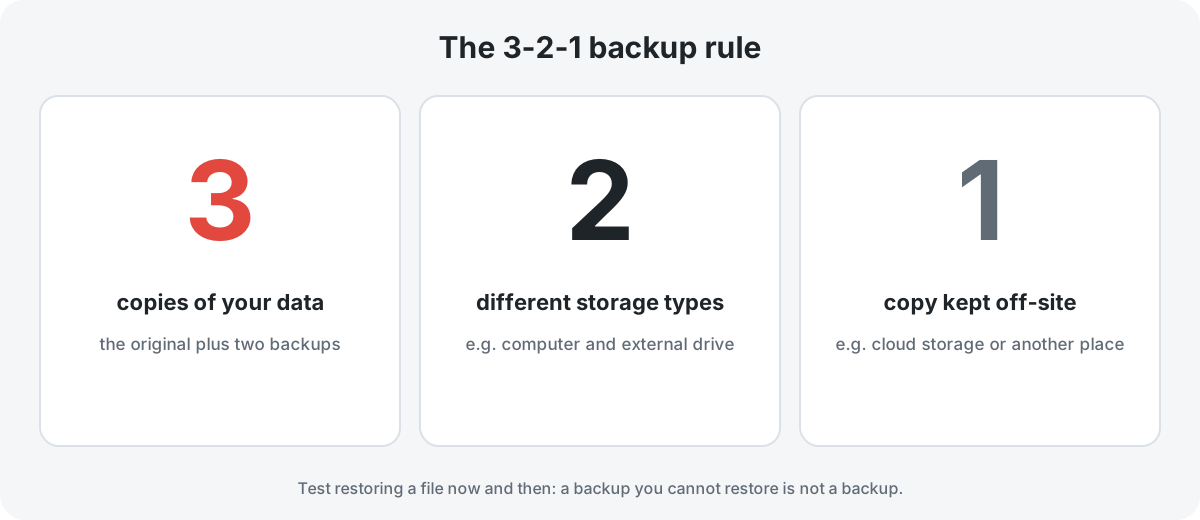
The rule
- 3 copies of anything you would hate to lose: the original plus two backups.
- 2 different types of storage, for example your computer's internal drive and an external drive. That way one fault or one kind of failure does not take out everything.
- 1 copy off-site, such as a cloud backup service or a drive kept at another address. That protects you against fire, flood and theft.
Why backups matter for ransomware
Ransomware encrypts files and demands payment. It can also encrypt any drive or synced folder that the infected computer can reach. A backup only protects you if malware cannot reach it. In practice, that means:
- disconnect an external backup drive when the backup has finished;
- choose a cloud service that keeps previous versions of files, so you can roll back to versions from before an infection;
- understand that a synced folder on its own is not a backup. Deletions and encryptions sync too, unless the service keeps version history.
Built-in tools
- Windows: File History, or Windows Backup on recent versions, to an external drive or OneDrive.
- macOS: Time Machine to an external drive or a compatible network drive.
- Android and iPhone: the platform's own backup (Google or iCloud), plus a separate copy of photos if they matter to you.
A simple routine
- Decide what matters: photos, documents, financial records and anything else you could not recreate.
- Set up an automatic backup to an external drive, and plug it in at least weekly.
- Add an off-site or cloud copy with version history.
- Every few months, restore a random file to prove the backup works.
This guide contains no partner links. Product names are mentioned only as examples of built-in tools.